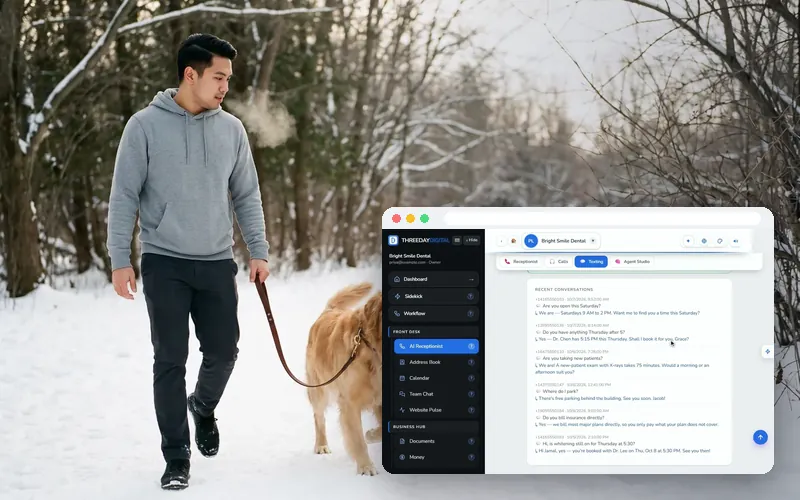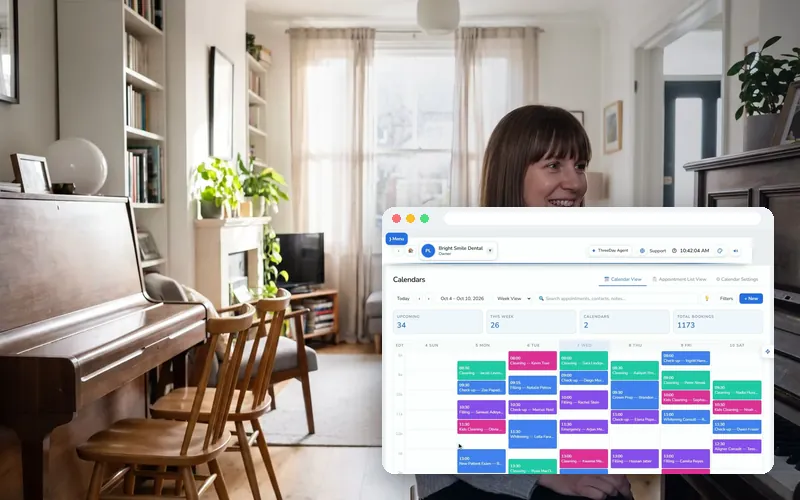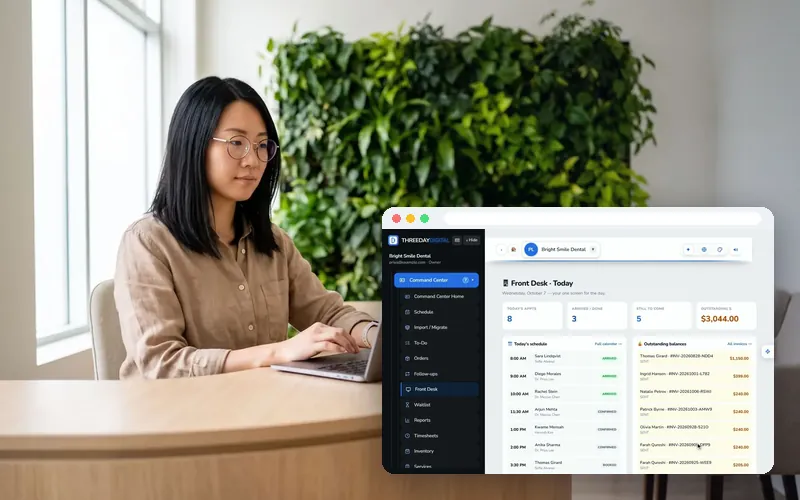
An empty chair is revenue you can never sell again. Reminders go out on their own from a Workflow; when someone can’t make it, your receptionist moves them on the same call and the freed slot can be filled from the waitlist.
Every recording here is the real ThreeDay app on a demo account: the names and numbers in it are made up.
Check the rules she books by
Reminders follow real bookings, and real bookings follow your hours.
How to do it
- Open Calendar → Settings → 🕘 Hours & booking rules.
- Check your hours, minimum notice and how far ahead people can book.
Switch on the reminder Workflow
Pick the reminder template and set when each message goes.
How to do it
- Open 🔀 Workflow → ✨ Start from a template and pick appointment reminders.
- Set the steps: a text the day before, another two hours before.
- Use “Test on me”, then turn it on.
See the changes land
When a customer reschedules or cancels, the calendar updates the moment it happens.
How to do it
- Open the Appointment list to scan the day.
- Open any booking to see what changed.
Ask for a review after the visit
The same Workflow can send a review request after the visit; Website Pulse → Reviews shows what comes in.
How to do it
- Add a review-request step after the appointment.
- Watch new reviews on Website Pulse → Reviews and answer them on Google.
Questions people ask
Can it book appointments into my real calendar?
Yes — live, in-call booking straight into your calendar with SMS and email confirmations to the customer. Rescheduling and callback requests are handled too.
Can it text customers too?
Yes. Two-way texting lives in your Address Book inbox alongside email — send confirmations, follow-ups and review requests from your business number. Mass texting with daily-limit smarts is built in.
Can she make outbound calls?
Yes. Besides answering, she calls people for you: she calls back missed calls, follows up new leads that haven’t booked, chases quotes, calls clients due for a recall and reminds them about overdue invoices. Pick a ready-made Workflow, switch it on, and it stops the moment they reply or book. She calls from your business number, on the same minutes, and every call is on your Calls page with its recording and summary.
Does it make outbound calls too, or only answer them?
Both, and out of the same bucket of minutes at the same rate — there is no separate outbound plan and no second bill. It calls people back, chases quotes and confirmations, runs follow-up campaigns from a list you import, and dials on a schedule you set. Inbound and outbound share one balance, so a busy week of callbacks simply draws on the minutes you already have.
Can she text a booking link?
Yes. On the Texting tab you set what she should say, what she must never quote and where to send a booking link; in Agent Studio “text a link” is one of the things you can let her do on a call.
More answers in the Help center, or ask the chat bubble.