Your bookings live in one calendar. Appointments your receptionist books land here on their own, anything you add by hand sits beside them, and your opening hours here are the rules she books by. She books live during the call and the customer gets a text and email confirmation.
Every recording here is the real ThreeDay app on a demo account: the names and numbers in it are made up.
See the week
Switch between day, week and month. Her bookings appear by themselves next to yours.
How to do it
- Open Calendar and pick Day, Week or Month.
- Click an appointment to open it.
- Move, change or cancel it from there, or send the confirmation in a click.
Add an appointment yourself
For the bookings that come in at the desk or on your cell.
How to do it
- Press + New Appointment.
- Choose 📅 Meeting or 💇 Service booking.
- Pick the client, the time and the service, and save.
- Confirmations go out by text and email.
Work from the appointment list
The same bookings in rows you can scan, search and act on, for the days a grid is not what you need.
How to do it
- Open the Appointment list tab.
- Search by name.
- Open any booking in place to change it.
Set the rules she books by
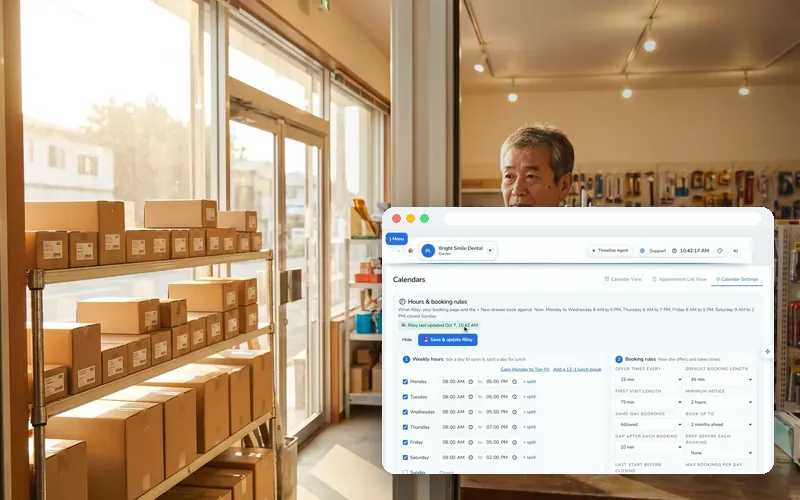
Your hours are her rules. Set your opening hours, how much notice you need and how far ahead people can book.
How to do it
- Open Settings → 🕘 Hours & booking rules.
- Set opening hours for each day.
- Set minimum notice and how far ahead people can book.
- Save — she follows them from the next call.
Questions people ask
How fast is setup, really?
About 3 minutes. Sign up, answer 3 quick questions about your business, and your AI receptionist, your dashboard and your dedicated number go live — the number rings immediately. Most owners take real calls the same day, with zero technical work.
What happens if I go over my voice minutes?
Nothing breaks — your receptionist keeps answering. Extra minutes simply bill at $0.35/min — with alerts at 50%, 80% and 90% so it never surprises you. Running heavy every month? We’ll quote you a bigger pool.
Can I keep my existing phone number?
Yes. We either port your current number over, or set up a fresh dedicated line and forward your existing number to it — no downtime, no missed calls during the switch.
Will my callers know they’re talking to AI?
Most won’t. The voice uses natural speech, realistic pauses and genuine warmth. It books appointments, quotes, qualifies leads and can live-transfer to you — logging every call in your CRM. We disclose that it’s AI wherever it’s legally required.
What happens if the AI can’t answer something?
Exactly what a great receptionist does: it takes a detailed message, books a callback with your team, or live-transfers the caller to your phone. Every interaction is captured in your CRM, so nothing slips through.
More answers in the Help center, or ask the chat bubble.