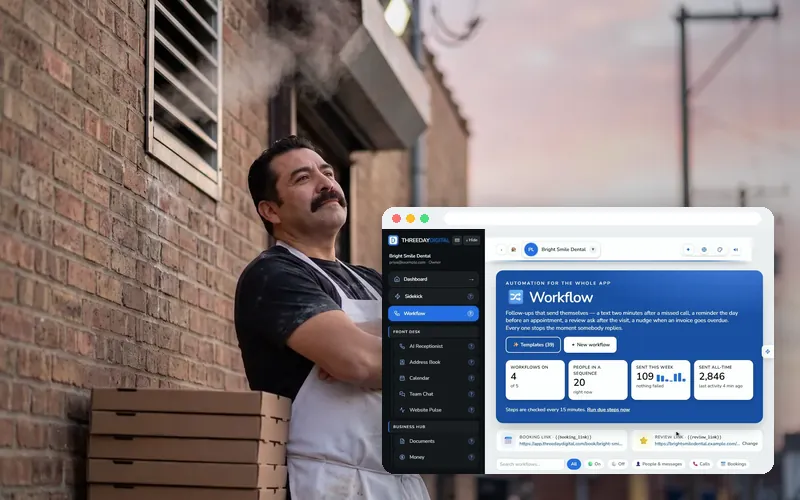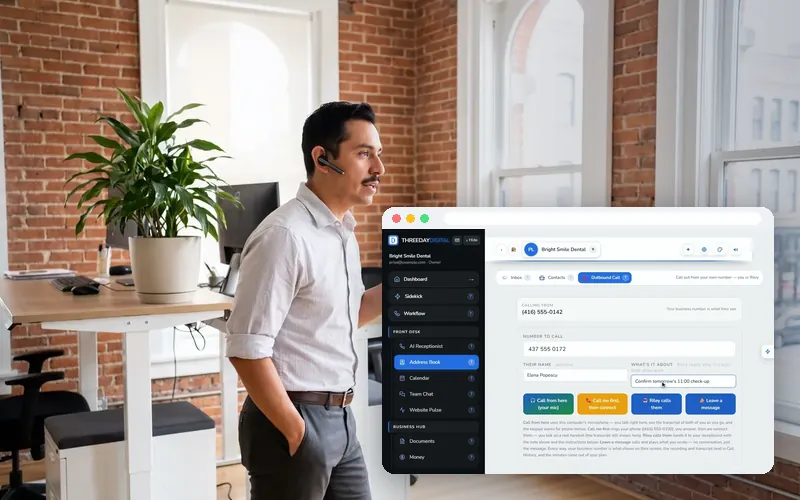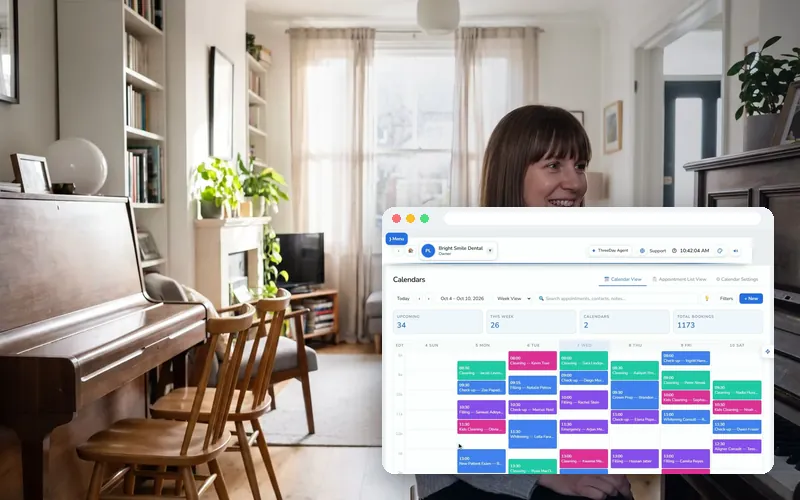
The Address Book keeps every customer in one book with every conversation attached: Inbox (every call, text and email in one thread), Contacts (everyone you deal with) and Outbound Call. Your receptionist files callers in here automatically, so most of your contact list builds itself.
Every recording here is the real ThreeDay app on a demo account: the names and numbers in it are made up.
Answer from one inbox
Every call, text and email with a customer sits in one thread, in order, so you read the whole relationship instead of hunting three apps for it.
How to do it
- Open Address Book → Inbox. Unanswered inbound messages sit at the top waiting for a human.
- Click a thread to open it and reply by text right there.
- Switch to 📤 Sent to see your side of it.
- Open the ✉️ Email view for your business mailbox; your addresses are the chips at the top.
Keep a contact list that builds itself
You can add and edit anyone by hand or import a list, and open a person to see their calls, messages, bookings and notes together.
How to do it
- Open Contacts and search by name, number or email.
- Open somebody for their full history.
- Add tags; tags can start a Workflow by themselves.
- Use the block toggle to stop texting somebody who asked you to stop.
Talk to your team in Team Chat
Private chat for your team inside the app: questions, handoffs and updates in one thread instead of scattered texts.
How to do it
- Invite your staff under Team in the account menu.
- Open Team Chat, type and send — everyone on your team sees it.
- Attach photos or files when a picture says it faster.
- Watch the red badge on the sidebar for what you haven’t read.
Questions people ask
Can it text customers too?
Yes. Two-way texting lives in your Address Book inbox alongside email — send confirmations, follow-ups and review requests from your business number. Mass texting with daily-limit smarts is built in.
Can my team use it too?
Yes — invite teammates with their own logins and roles, chat internally in Team Chat, and hand off conversations without forwarding screenshots around.
Can she text a booking link?
Yes. On the Texting tab you set what she should say, what she must never quote and where to send a booking link; in Agent Studio “text a link” is one of the things you can let her do on a call.
More answers in the Help center, or ask the chat bubble.