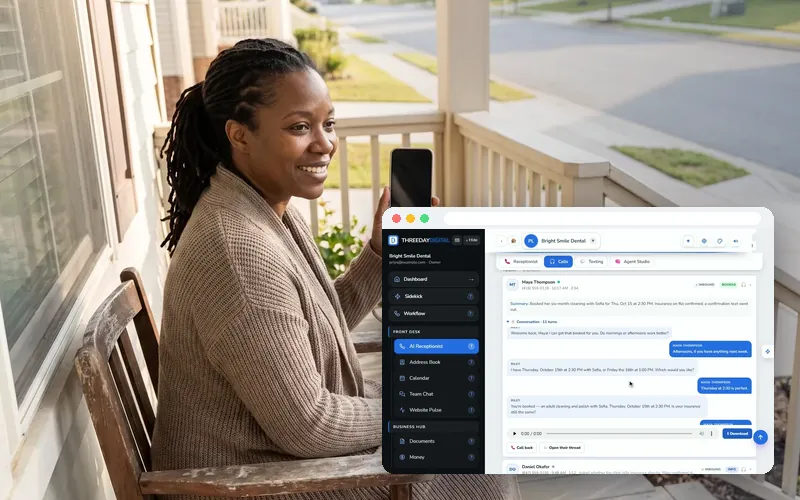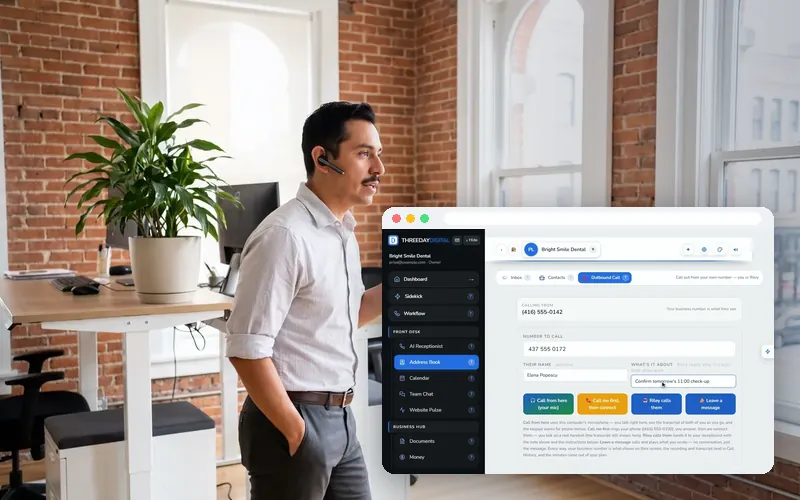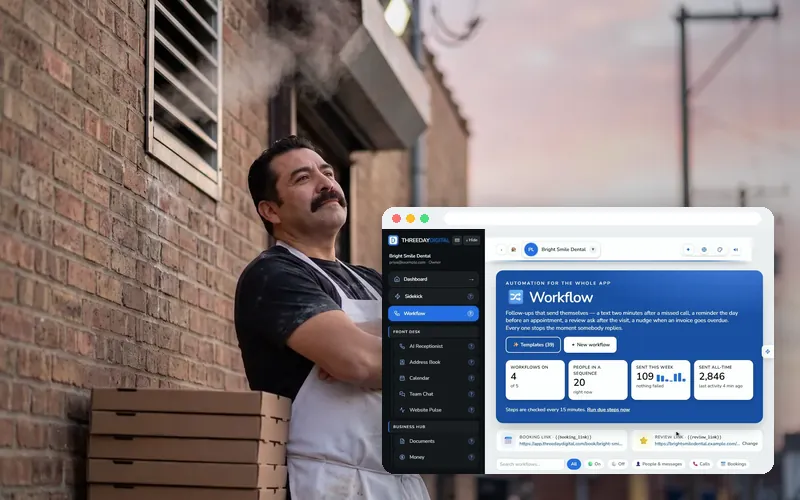
Your receptionist answers your business line 24/7: she greets callers, answers questions about your business, books straight into your calendar and texts back the calls you miss. Every call is recorded, transcribed and summarised. Setting her up is three short pages, in this order.
Every recording here is the real ThreeDay app on a demo account: the names and numbers in it are made up.
Set your hours first
Her booking obeys the hours in Calendar → Settings. Set them before anything else and she will never book you into a closed Sunday.
How to do it
- Open Calendar, then Settings → Hours & booking rules.
- Set your opening hours for each day.
- Set how much notice you need before an appointment and how far ahead people can book.
- Save. Your receptionist books by exactly these rules from the next call.
Write her greeting and what she may book
The Receptionist tab is the plain-English setup: her greeting, your opening hours, what she is allowed to book, and who a call goes to when it needs a human.
How to do it
- Write the greeting the way you would answer the phone yourself.
- Set which services she can book and how long each one takes.
- Give her a transfer number for the calls that need you.
- Call your number again and listen to the new greeting.
Fine-tune her in Agent Studio
Agent Studio is the full control panel: her prompt and greeting, the voice she uses, the things she is allowed to do on a call (book, transfer, take a message, text a link) and her knowledge base.
How to do it
- Describe your business in “Describe it” and press ✨ Draft it — she writes her own instructions from it. The 🎙 mic types as you speak.
- Open Functions and switch on what she can do: ten ready-made ones, plus your own.
- Pick a voice with 🔊 Hear her. There are 300+ voices across 13 accents.
- Add notes, websites or documents to her Knowledge base so she can answer about your prices and policies.
- Press Save & publish. Nothing reaches your line until you publish.
Turn on the missed-call text back
Customers text your business number and she replies with the same knowledge she uses on the phone, including an automatic text to anyone whose call you missed.
How to do it
- Open the Texting tab.
- Turn automatic replies on (off gives you a plain inbox to answer by hand).
- Set what she should say, what she must never quote, and where to send a booking link.
- Read every thread in Address Book → Inbox: each text lives in the customer’s own thread.
Questions people ask
How fast is setup, really?
About 3 minutes. Sign up, answer 3 quick questions about your business, and your AI receptionist, your dashboard and your dedicated number go live — the number rings immediately. Most owners take real calls the same day, with zero technical work.
What happens if I go over my voice minutes?
Nothing breaks — your receptionist keeps answering. Extra minutes simply bill at $0.35/min — with alerts at 50%, 80% and 90% so it never surprises you. Running heavy every month? We’ll quote you a bigger pool.
Can I keep my existing phone number?
Yes. We either port your current number over, or set up a fresh dedicated line and forward your existing number to it — no downtime, no missed calls during the switch.
Will my callers know they’re talking to AI?
Most won’t. The voice uses natural speech, realistic pauses and genuine warmth. It books appointments, quotes, qualifies leads and can live-transfer to you — logging every call in your CRM. We disclose that it’s AI wherever it’s legally required.
What happens if the AI can’t answer something?
Exactly what a great receptionist does: it takes a detailed message, books a callback with your team, or live-transfers the caller to your phone. Every interaction is captured in your CRM, so nothing slips through.
More answers in the Help center, or ask the chat bubble.